
If the avatar isn’t responding and you see “Connecting” in the status bar, it likely means there’s a connection issue with the AI before your role-play begins.
Troubleshooting Steps
1. Check your internet connection
Clearing your browser data can often fix connectivity issues:
Clear browser data in Chrome
Clear browser data in Edge
After clearing, relaunch the role-play.
3. Close unnecessary apps and tabs
Close any video or call apps using your microphone (e.g. Zoom, Teams, Google Meet)
Shut down extra browser tabs to free up memory and avoid interference
4. Update your browser
An outdated browser may cause compatibility issues:
Update Google Chrome
Update Microsoft Edge
5. Check microphone permissions
Make sure the correct microphone is selected before starting the role-play.
In Chrome:
Important: If PitchMonster doesn’t have mic access, the AI will not activate properly.
What should the Screen Look Like?
Before clicking Start recording role-play, you should:
Still Not Working?
If you’ve tried all the steps above and the issue persists, contact your company admin for further assistance.
Troubleshooting Steps
1. Check your internet connection
- Ensure you have a stable connection. Recommended speed:
Minimum: 3 Mbps download / 3 Mbps upload
Optimal: 20 Mbps download / 5 Mbps upload - Try moving closer to your router
- Switch to a stronger Wi-Fi network if available
Clearing your browser data can often fix connectivity issues:
Clear browser data in Chrome
Clear browser data in Edge
After clearing, relaunch the role-play.
3. Close unnecessary apps and tabs
Close any video or call apps using your microphone (e.g. Zoom, Teams, Google Meet)
Shut down extra browser tabs to free up memory and avoid interference
4. Update your browser
An outdated browser may cause compatibility issues:
Update Google Chrome
Update Microsoft Edge
5. Check microphone permissions
Make sure the correct microphone is selected before starting the role-play.
In Chrome:
- Go to Settings → Privacy and Security
- Click on Site Settings → Microphone
- Ensure the correct device is selected
- Allow access to team.pitchmonster.io
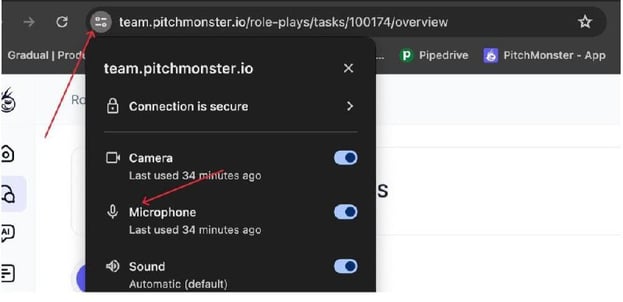
Important: If PitchMonster doesn’t have mic access, the AI will not activate properly.
What should the Screen Look Like?
Before clicking Start recording role-play, you should:
- See yourself (if it’s a video role-play)
- See your mic levels moving when you speak
- See the AI avatar loading correctly (not stuck on “Connecting”)
Still Not Working?
If you’ve tried all the steps above and the issue persists, contact your company admin for further assistance.