
Before your reps start a role-play, you can show them a short brief. It gives them context, tells them who they're about to talk to, and sets out what a good outcome looks like. Reps see it when they open the exercise, before recording starts.
Where to add them
User guidelines live on the last step of the role-play editor, General settings.
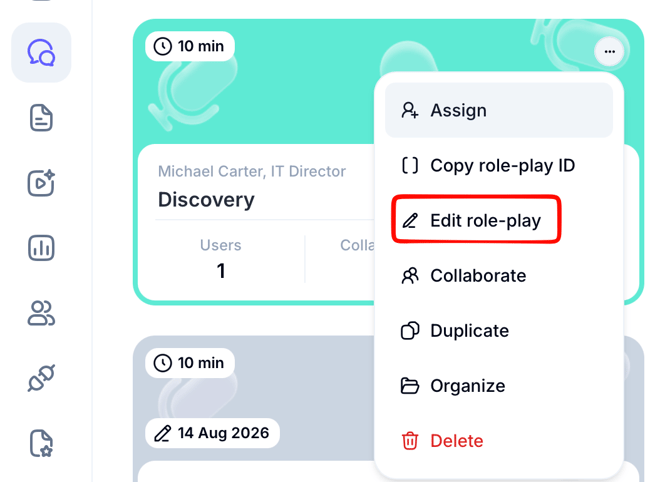
If you're building a new role-play, you reach it as the final step. To add guidelines to a role-play that's already live, find its card on the dashboard or in the Role-plays tab, click the three dots in the top right corner, choose Edit role-play, then open the General step.
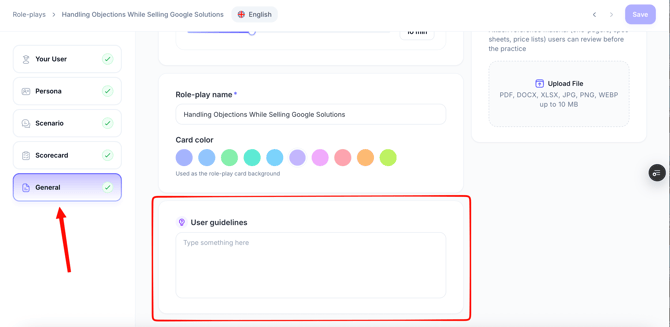
Write user guidelines to give participants context. Add details for your team, such as role-play instructions, scripts, presentation decks, sample calls, or other resources to review before recording. You can attach a file of up to 1 GB.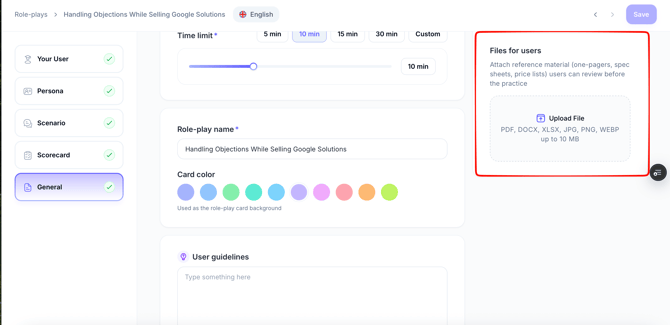
Note: This information will NOT be used to train the AI or impact scoring.
Here’s the example:
In this scenario, you're acting as a sales representative from Altix Solutions, following up with Karen Mitchell, CFO at Nexora Dynamics—an existing client currently spending $600K annually.
Karen has expressed interest in exploring Altix InsightEdge, a new solution focused on predictive analytics, scenario modeling, and real-time financial insights.
Customer Context:
- Nexora is facing increased complexity in its financial planning.
- Leadership is pushing for faster reporting cycles and better forecasting.
- There's a growing need to unify data across global divisions.
Customer Objective:
- Karen wants to evaluate how InsightEdge can help
- Streamline planning and reporting
- Improve cross-functional visibility
- Support faster, more accurate financial decisions
Your Sales Objective:
- Advance this opportunity
- Run a discovery session that uncovers high-impact pain points
- Position InsightEdge as a strategic solution, not just a tool
Good luck!