
You can build an AI role-play by uploading your team’s real materials, such as sales scripts, transcripts, or call recordings. This allows the platform to recreate the persona, tone, and conversation patterns found in your actual calls, giving you a realistic foundation to work from.
Below is a clear and structured guide that explains how to use each upload option, how to prepare your files, and current limitations.
1. Choose How You Want to Start
When you create a new role-play, you’ll see several setup options under Standard:
-
Start from scratch
-
Upload transcript/doc
-
Upload recording
-
Quick start with AI
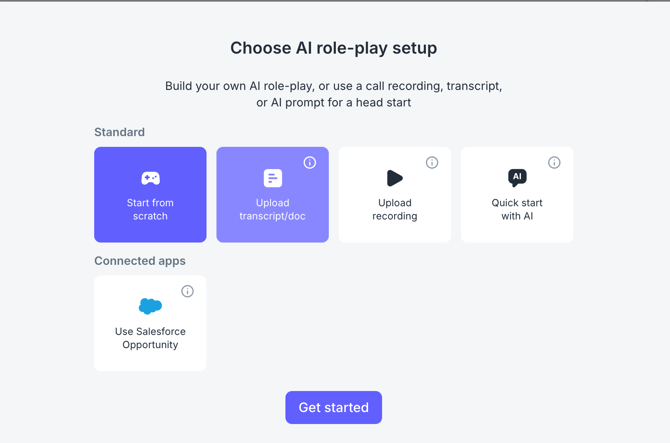
You can also use Salesforce Opportunity if you want to build a role-play based on a live deal.
To create a role-play using your own materials, select either Upload transcript/doc or Upload recording.
2. Uploading a Transcript or Document
Choose Upload transcript/doc if you want the AI to build a scenario based on text content such as:
-
Call scripts
-
Sales call transcripts
-
PDF conversation documents
-
Coaching or discovery guides
-
Structured talk tracks
Uploading a transcript tells the system: “Use this conversation to recreate the customer persona, tone, and flow of the interaction.”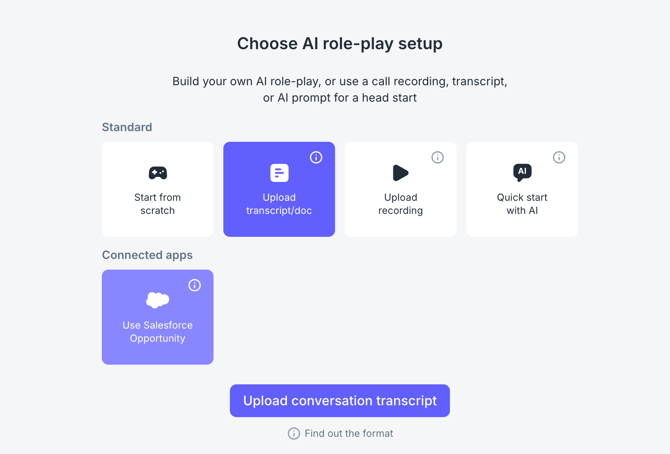
What Happens After Uploading
Once the transcript is uploaded, the system analyzes:
-
Tone and persona
-
Conversation style
-
Rep–customer dynamics
-
Structure and intent
You can then refine the scenario by:
-
Editing the persona
-
Adding user instructions
-
Modifying objectives and context
-
Inserting a scoring rubric for AI-based assessments
3. Uploading a Call Recording
Choose Upload recording when you want to build a role-play from actual sales calls rather than written content.
Uploading a recording tells the system: “Analyze this call and recreate the persona, tone, and conversation case so we can build a training scenario from it.”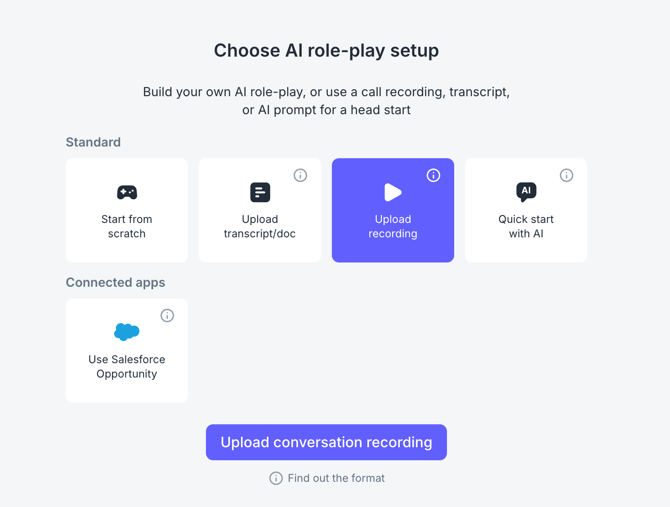
Supported Audio Formats
MP3, MP4, MP2, AAC, WAV, FLAC, PCM, M4A, OGG, Opus, WebM
Files up to 1 GB are supported.
What Happens After Uploading
The system extracts:
-
Speaking patterns
-
Customer tone and style
-
Rep behavior
-
Natural conversation flow
You can then:
-
Adjust the generated scenario
-
Add missing details or constraints
-
Update training objectives
-
Customize instructions and scoring (created manually)
4. Important Limitation: Scoring
Currently, the platform cannot automatically generate scores from uploaded transcripts or recordings. However, here's a recommended scoring prompt to create scores quickly and insert them:
Analyze the best practices for building an AI scorecard based on this guide:
https://help.pitchmonster.io/en-gb/how-to-build-an-ai-scorecard-best-practice-guide
Using those principles, create a complete AI scorecard for the following scenario: {Your scenario type} {Specific Context / Challenges}
Here is the example:
Analyze the best practices for building an AI scorecard based on this guide:
https://help.pitchmonster.io/en-gb/how-to-build-an-ai-scorecard-best-practice-guide
Using those principles, create a complete AI scorecard for the following scenario: Cold call with a CFO who’s about to sign a two-year deal with a competitor.
Paste the output directly into PitchMonster to activate scoring for that scenario.
5. Quick Start With AI (Alternative Option)
If you prefer not to upload a file, you can create a scenario from a simple prompt using Quick start with AI.
This option asks for:
Product/service link
Helps the AI speak accurately using industry-specific terminology.
What do you want your team to practice?
Describe the skill or objection in one or two sentences.
Example:
“I want my team to master responding to the ‘Send me an email’ objection on cold calls.”
Click Generate role-play to instantly create a ready-to-train scenario.