
PitchMonster lets you export recordings for review and analysis. You can do this in two ways—either from a specific role-play or across all role-plays.
Option 1: Export from a specific role-play
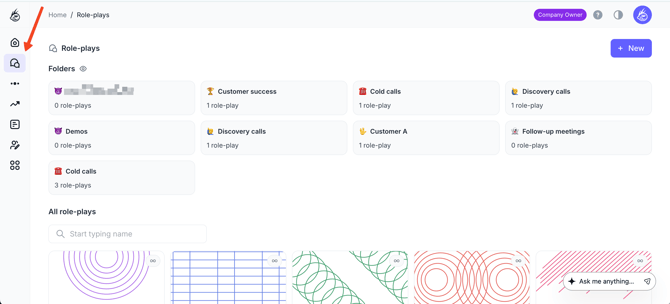
- Open the Role-play section on the left-side menu and select the role-play you want.
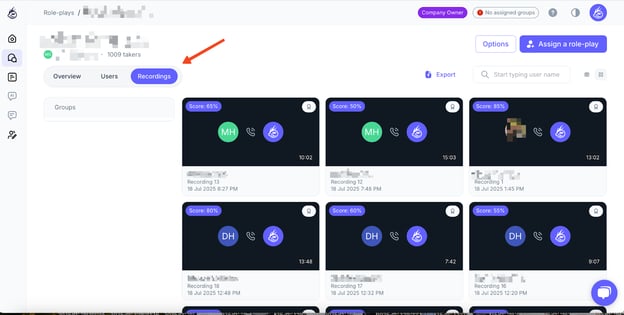
- Go to the Recordings tab.
- Click the Export button.
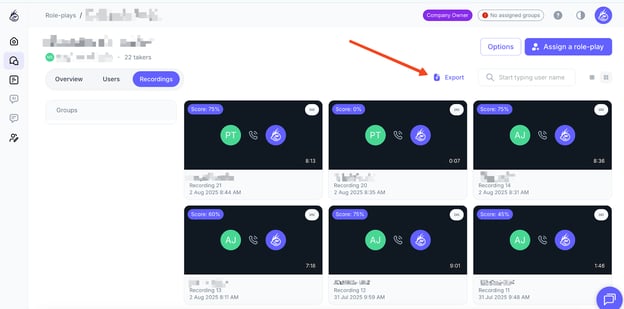
This will export all recordings from that particular role-play into a .csv file.
What’s inside the CSV file?
Each export contains eight columns:
- User Email
- Username
- Role-play score
- Recording duration
- Attempt link
- Status
- Reviewer
- Date
Option 2: Export all recordings
- Open the left-side menu and click on Reports.
- Press the Export button.
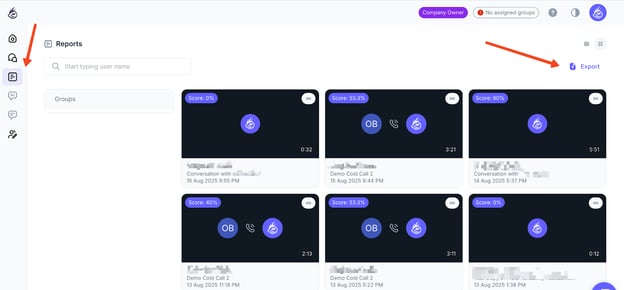
This will download a .csv file containing all recordings across every role-play in your account.
Tip: If Groups are enabled in your account, hover over the settings icon in Reports to see the option to export role-plays grouped by company structure.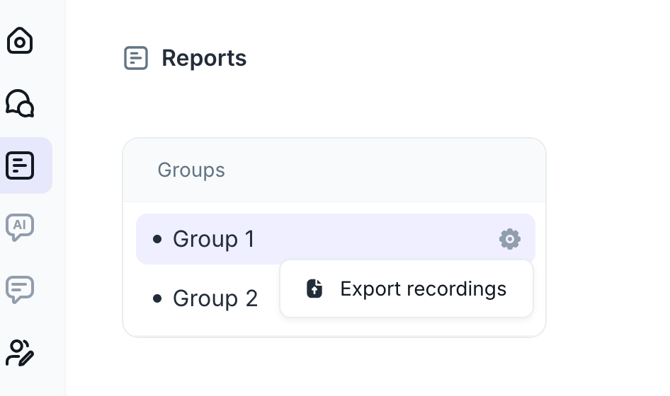
Which method should you use?
- Use Option 1 when you want detailed results from one specific role-play.
- Use Option 2 when you need a complete overview of all recordings in your account.