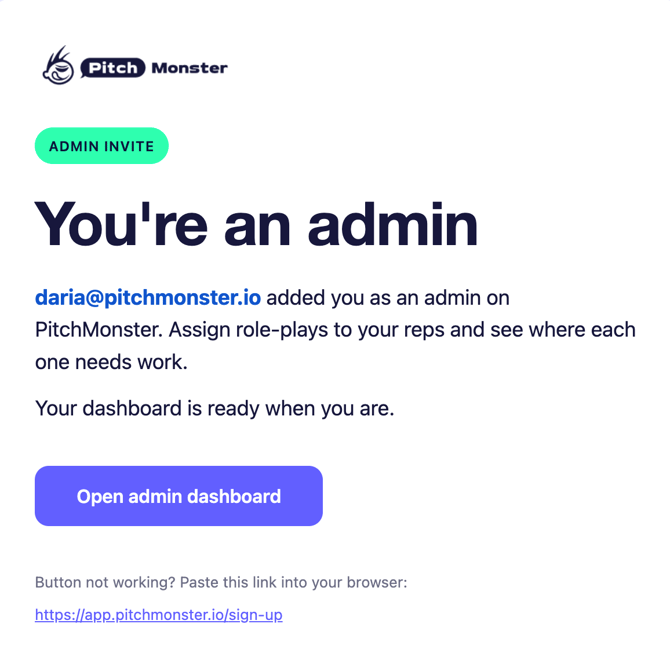
Before an administrator can create, edit, review, or collaborate on role-plays, they must first be invited to your PitchMonster company account. Administrators can be invited individually or in bulk using a CSV file.
Invite a New Administrator
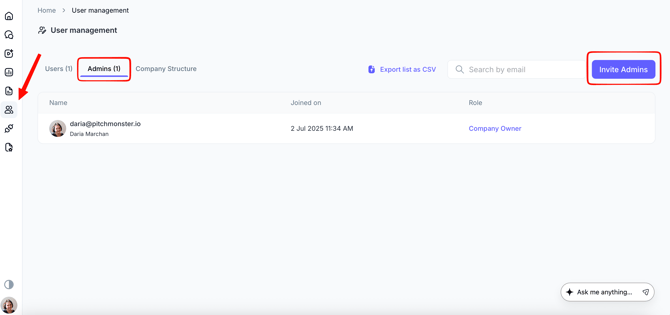
1. Click User Management in the left-side menu.2. Open the Admins tab. Click Invite Admins.
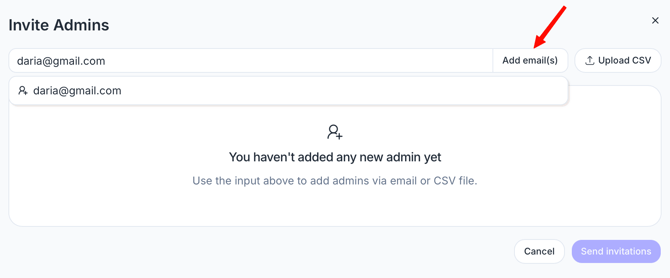
3. Enter one or more administrator email addresses. You can:
- Paste a list of email addresses. Press Enter.
- Use Add Email(s) to add multiple administrators at once.
4. Select Admin role. Choose the appropriate role for each administrator. You can apply the same role to everyone using the global role selector or assign different roles individually.
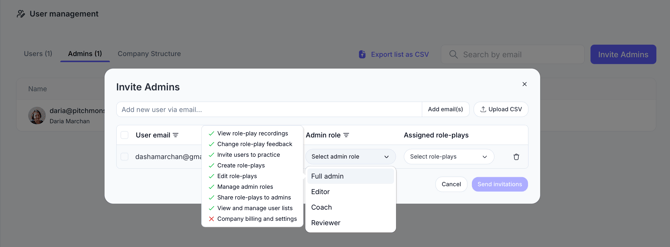
Below are the available admin roles and their permissions in PitchMonster:
|
Full Admin |
Editor |
Coach |
Reviewer |
|
|
|
Recommended for company executives and sales enablement leaders |
Recommended for leadership roles and content editors |
Recommended for managers, team coaches, or external coaches |
Recommended for team leaders and supervisors |
|
Create role-plays |
✓ |
✓ |
✕ |
✕ |
|
Edit role-plays |
✓ |
✓ |
✕ |
✕ |
|
Invite users to practice |
✓ |
✓ |
✓ |
✕ |
|
View role-play recordings |
✓ |
✓ |
✓ |
✓ |
|
Change role-play feedback |
✓ |
✓ |
✓ |
✓ |
|
Share role-plays to admins |
✓ |
✕ |
✕ |
✕ |
|
Manage admin roles |
✓ |
✕ |
✕ |
✕ |
|
View and manage user lists |
✓ |
✕ |
✕ |
✕ |
|
Company billing and settings |
✕ |
✕ |
✕ |
✕ |
5. Optionally assign admins to specific role-plays.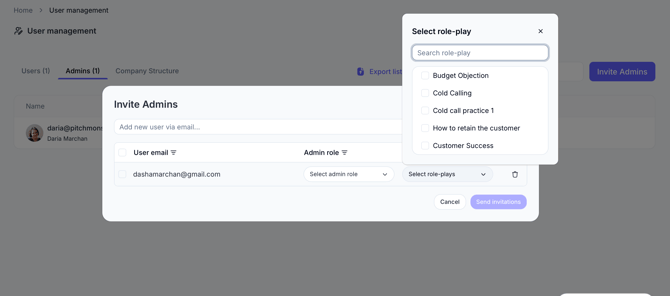
6. Assign Groups (Optional)
If Groups are enabled, you can assign admins to specific groups during the invitation process.
Admins can only manage users and groups within their assigned hierarchy.
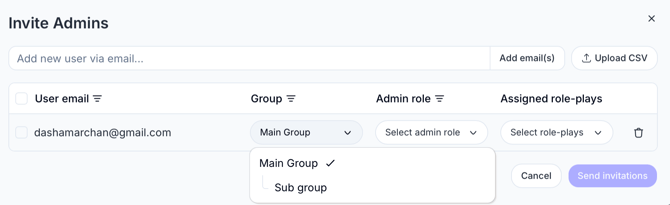
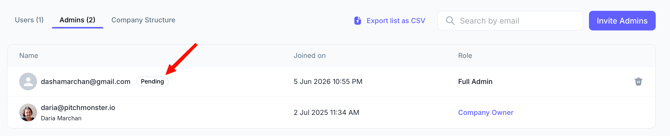
7. Click Send invitations. Once the manager has created their PitchMonster account, they will appear under the Admins tab on the User Management page otherwise invitation will be marked as pending.
Import Admins with CSV
To invite multiple admins at once:
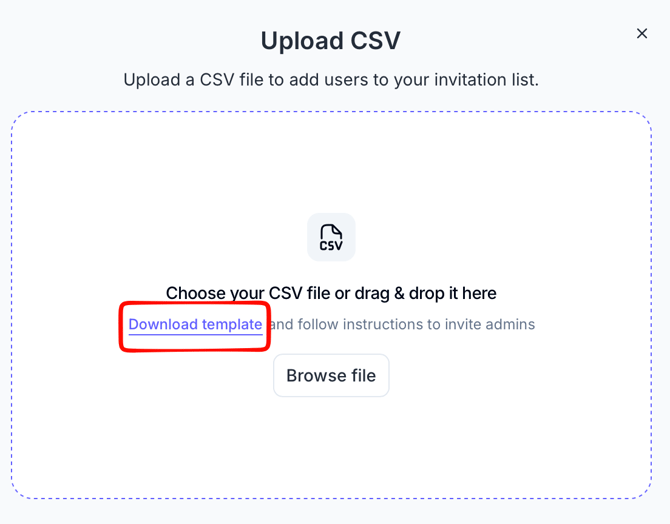
1. Click Import CSV.
2. Download the template.
3. Follow the instructions included in the file.
4. Upload the completed CSV.
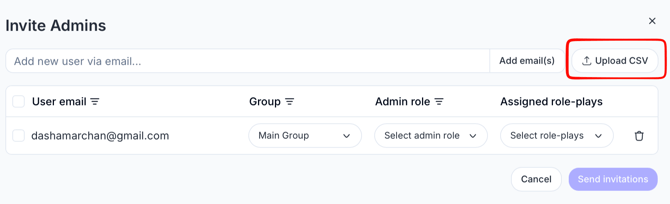
5. Click Send Invitations to email invitations to all selected admins. Invited admins will appear as Pending until they accept the invitation and create their account.