
Scorecard Templates allow you to standardize scoring criteria across role-plays and call analysis. Templates are shared at the company level and visible to all users once created by an admin.
Accessing Scorecard Templates
-
Open the left navigation bar.
-
Click Scorecard Templates.
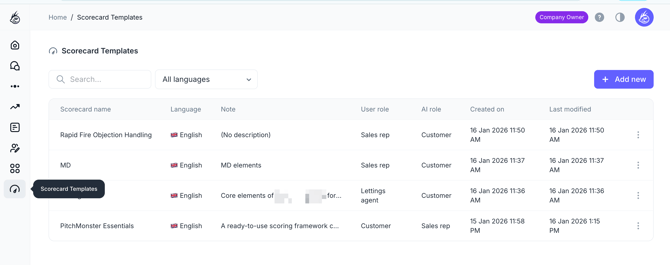
You will see a list of all templates available in your company account. Templates added by admins are visible to Company Owners, Full Admins, Editors.
Creating a New Scorecard Template
-
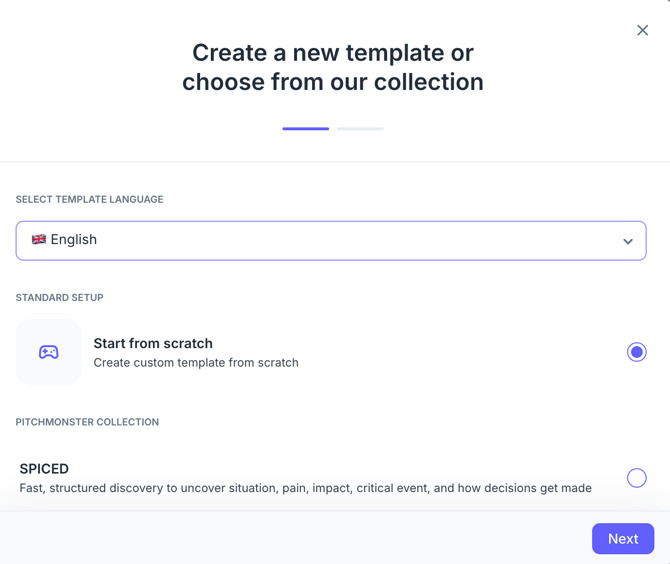
Click Add New Template.
-
Select the language.
-
Choose one of the following:
-
Start from scratch
-
Use a template from PitchMonster collection (available per language)
-
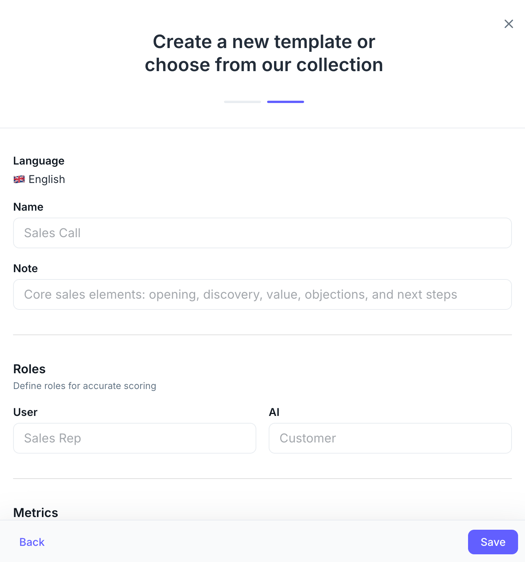
Configure the Template
-
Enter:
-
Template name (for example: Sales Call, Discovery Call)
-
Notes (used to distinguish similar templates, for example CFO vs CIO calls)
-
-
Define roles:
-
User role (Sales Rep, CSM, BDR, etc.)
-
AI role (Customer, Prospect, Existing Customer, etc.)
-
Add Metrics
-
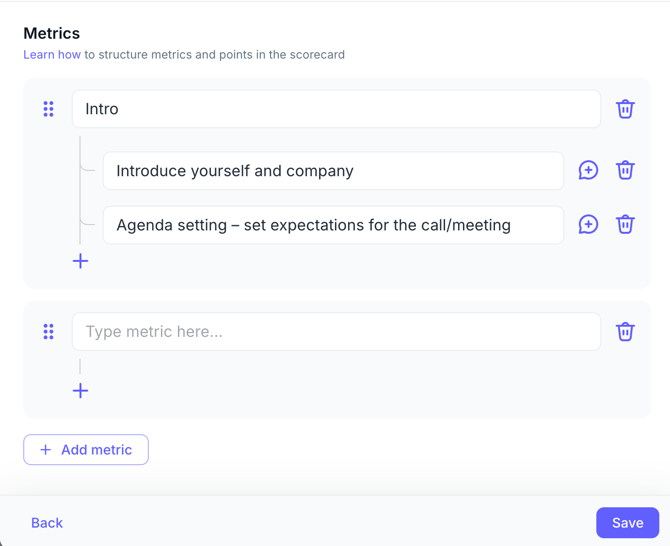
Add metrics with:
-
Metric title
-
Scoring points
-
-
Add or remove points as needed.
-
Open point context to add additional guidance for AI analysis.
-
Reorder metrics using drag and drop.
Click Save. The template will now appear in the template library. You can filter templates by language or search by name.
Using Templates in Role-plays
Scorecard templates can be applied when:
-
Creating a new role-play
-
Editing an existing role-play
Assigning a Template to a Role-play
-
Create or open a role-play.
-
Go to the Overview page.
-
Open the Scorecard section (next to the scenario editor).
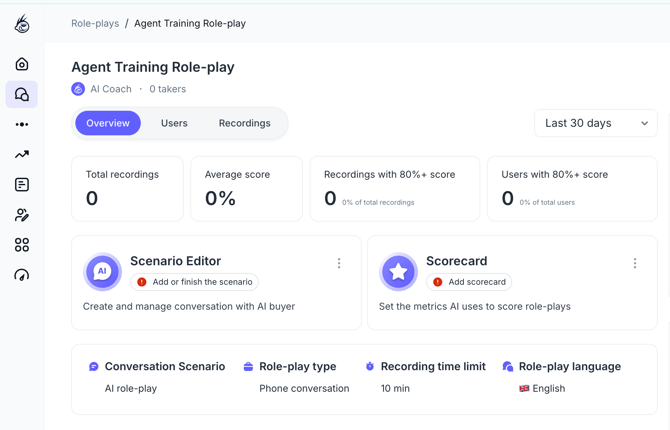
If the scorecard is empty, the role-play cannot be assigned.
-
Click the three dots and select Add scorecard.
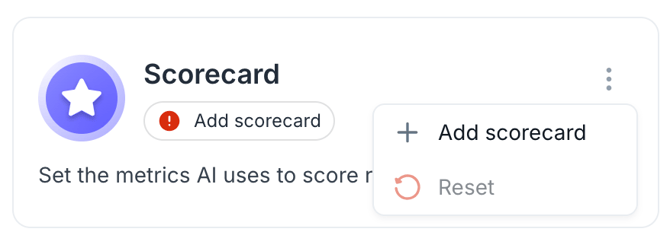
2. Choose:
-
-
Select an existing template (based on role-play language)
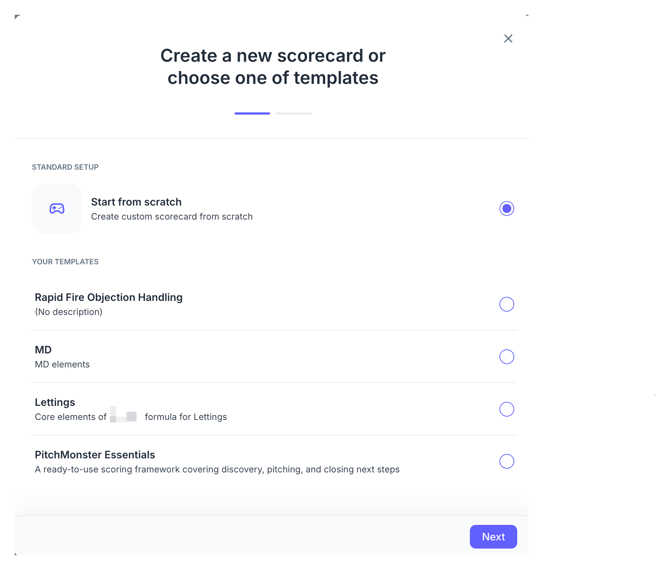
You can edit metrics, points, roles, and context. The template name cannot be changed here. Click Save to enable the scorecard.
Saving a Role-play Scorecard as a Template
If you modified a scorecard and want to reuse it:
-
Open the role-play scorecard.
-
Click Save as a template.
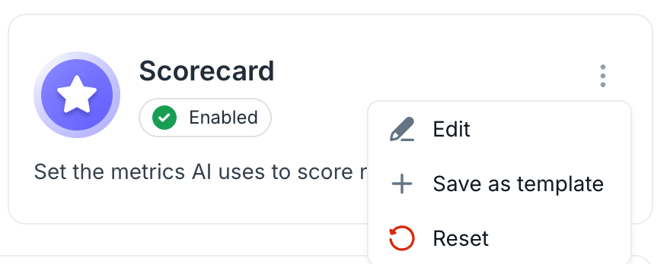
3. Review or edit details.
4. Provide a name and notes.
5. Click Save.
The new template will appear in the Scorecard Templates library.
Resetting a Scorecard
You can reset a role-play scorecard to:
-
Switch to a different template
-
Rebuild the scorecard entirely
Important:
-
Previous scores are archived on existing recordings.
-
Old scores remain visible as legacy scores.
-
Scores are not automatically recalculated after a reset.
Using Templates in Call Analysis
Scorecard templates are required for call analysis.
-
Go to Call Analysis.
-
Click Upload new call.
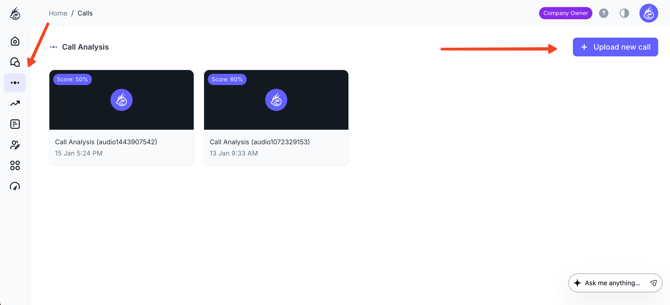
3. Select the call language.
4. Choose a scorecard template available for that language.
5. Upload the call.
If no templates exist for a selected language, call analysis cannot proceed. Templates must be created first.