
Here’s how you can quickly create a new role-play for your team:
1. Go to the dashboard. Click the Add+ icon on the right. Create a new role-play:-2.png?width=670&height=319&name=image%20(7)-2.png)
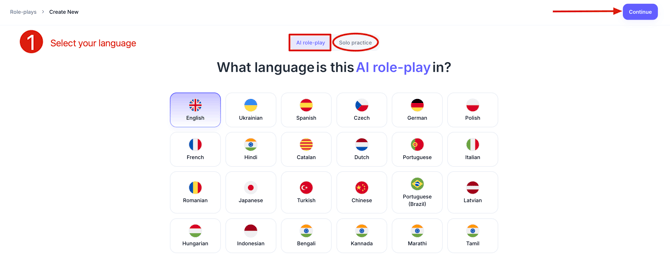
Then pick the mode:
AI role-play - your rep talks to an AI persona. Use this for cold calls, discovery, demos, negotiations, anything with a buyer on the other side.
Solo practice - no persona. The rep shares their screen and pitches. Use this for deck run-throughs and pitch practice where nobody interrupts.
Click Continue.
3. Pick your starting point:
From link - paste a website URL. Your prospect's site, a product page, a competitor page.
From files - upload a deck, a battlecard, a product sheet.
Replicate - upload a real call recording or transcript. Calls and transcripts now sit under one tab. The AI rebuilds that conversation as a role-play.
Connectors - pull a deal straight from Salesforce.
You can still write everything yourself. The Start from scratch button sits on the same screen.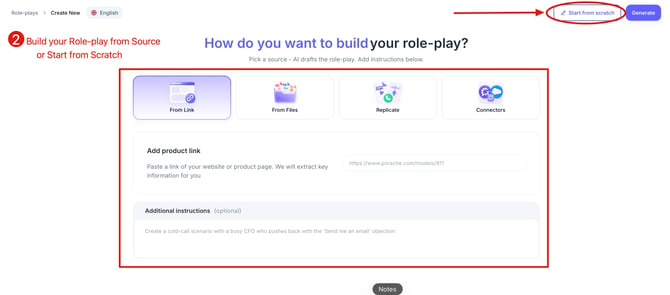
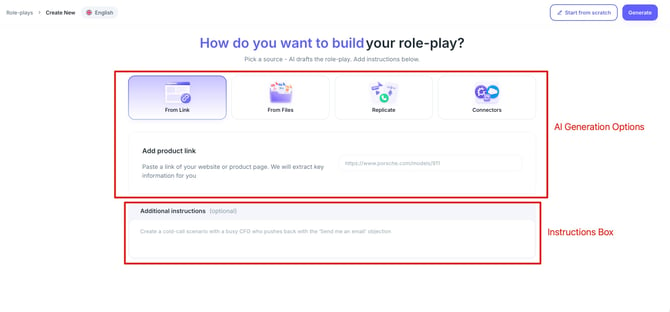
Every option now has an Additional instructions box. Use it to steer what the AI writes: "add two pricing objections", "make the persona more skeptical than she was on the call", "the buyer already spoke to a competitor".
Click Generate. The AI writes the scenario, the case, the objections, the persona, and the conversation starter. You no longer type the opening line by hand.
4. Edit everything in one place
One editor holds the whole setup, with tabs down the left:
Your user - company name, what you sell, product link, and the rep's role (salesperson, SDR, BDR, recruiter, and so on).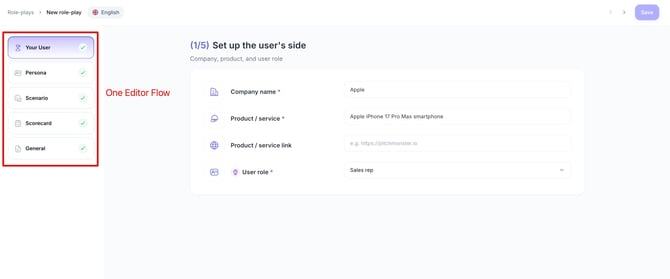
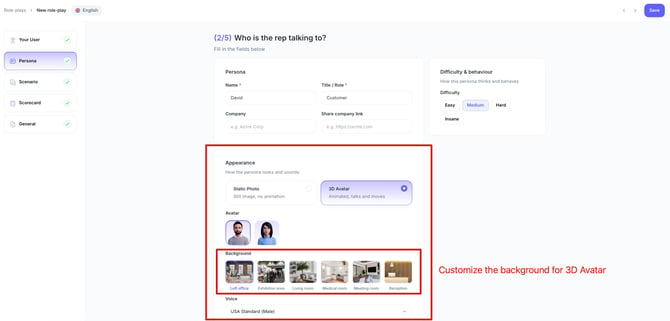
Persona - name, title, company. Under Appearance you pick a static photo from the library, which covers buyers, homeowners, car shoppers, HR contacts, doctors, patients, and retail customers. Or switch to a 3D avatar and pick gender and background. Set the voice here too. Voice is the one thing every role-play needs.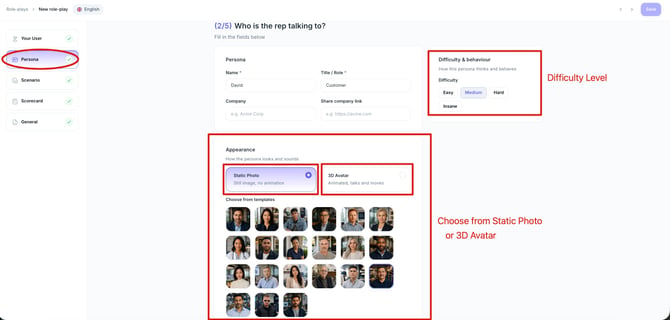
Scenario - conversation context, conversation steps, objections, conversation starter. Steps and objections run in simple or advanced mode, and you can add conditions. If you want to go deeper on writing steps and objections, start here.
Scorecard - goal, knowledge base, metrics. Apply one of your saved templates or let the AI write it. More on building scorecards and metrics.
General - covered below.
5. Build your own format in General settings
Set the role-play up to feel like the real conversation your rep is walking into. Every role-play comes with voice. From there, turn on whatever the situation needs:
- Webcam video
- Screen share
- Ring-back tone
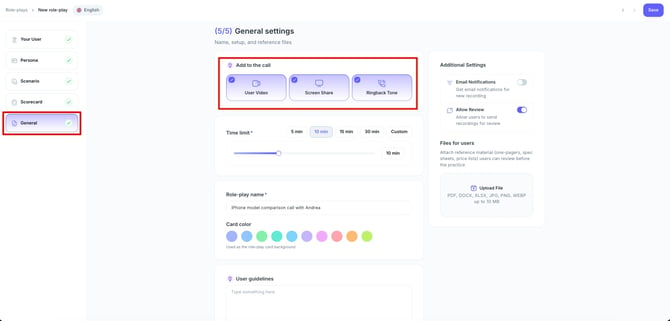
Practising cold calls? Leave the ring-back tone on and the rest off, so your rep hears the line connect the way it does on a real dial. Preparing for a meeting with a buyer, turn on webcam video. For a remote demo, add screen share on top of it.
Mix and match as you like. Nothing stops you putting a ring-back tone in front of a screen share if that's how your calls actually start.
The same tab holds:
Time limit - up to 30 minutes.
Role-play name - written by the AI from your setup. Edit it if you want something your team will recognise faster, like "Cold call with CIO" or "Handling pricing objection".
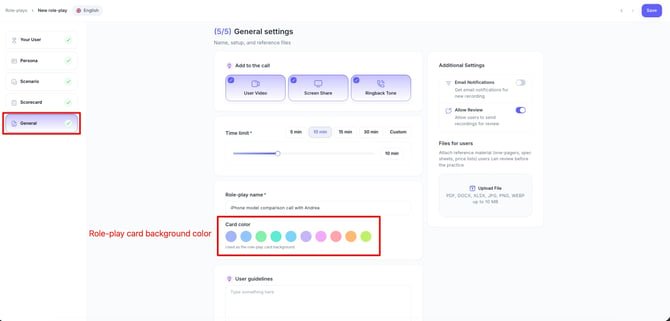
Card colour - choose how the card looks on the dashboard.
6. Add user guidelines and files
Write user guidelines to give participants context. Add details for your team, such as role-play instructions, scripts, presentation decks, sample calls, or other resources to review before recording. You can attach a file of up to 1 GB. You can check out the example in this article.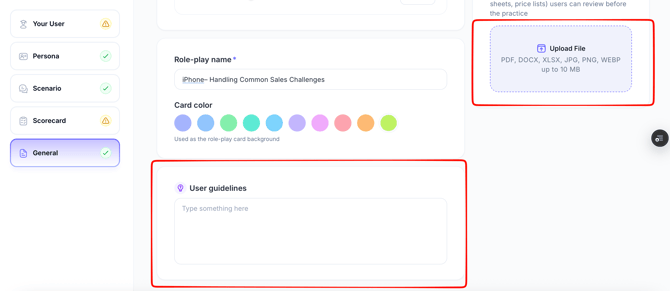
7. Click Save role-play.
If every required field is filled, the role-play publishes and you can invite users.
If something is missing, we save it as a draft. Drafts show on your dashboard and in the Role-plays tab with a Setup incomplete label. Hover over the greyed-out Invite users button and you'll see why. Open the editor and we highlight the fields you still need to fill.
Drafts have no Overview page, since we can't summarise a role-play that isn't finished.
This stops the problem where a rep launched a role-play with a missing persona or a missing scorecard, then got a glitchy conversation or no feedback at all. If a published role-play goes back to draft, anyone it was assigned to can still open their past results, but they can't start a new attempt.